

Deploying OpenCTI, a powerful threat intelligence platform, using Docker Compose on an Ubuntu virtual machine is a quick and efficient way to set up a scalable cybersecurity solution. OpenCTI provides analysts with tools to visualise, analyse, and share threat data seamlessly. By leveraging Docker Compose, you can simplify the deployment process, ensuring all necessary services like the database and connectors are properly configured. In this blog, we’ll walk you through the steps to get OpenCTI up and running on an Ubuntu VM, enabling you to centralise and enhance your threat intelligence operations.
For this demo I have set up a new Ubuntu 24.04.1 LTS VM downloaded from HERE and will be following this OpenCTI setup guide.
# install docker-compose incase it isn't pre installed in your version of linux
sudo apt install docker-compose-v2
# create a directory for opencti and navigate into it (may require sudo)
mkdir -p /opt/opencti && cd /opt/opencti
# Clone a copy of the OpenCTI platform into your local repository
git clone https://github.com/OpenCTI-Platform/docker.git
# Navigate into the docker directory
cd docker
# List all the files in the docker directory
ls -al
# Rename and edit the environment sample file
sudo mv .env.sample .env
sudo vim .env
# update the OPENCTI_ADMIN_TOKEN with a new UUIDv4 from HERE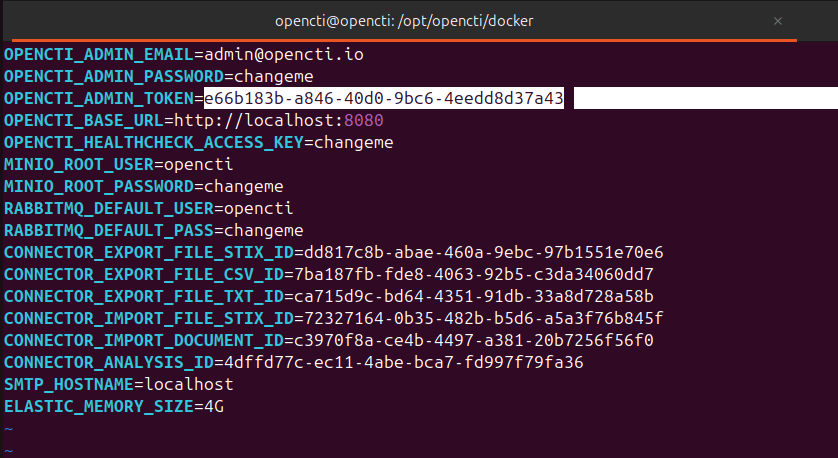
OpenCTI uses ElasticSearch for it’s backend database, you will need to configure the max map count on the container before bringing them up. You should also edit the systemctl configuration file to persist this setting.
# To make the setting change in the live VM
sudo sysctl -w vm.max_map_count=1048575
# add this line to the end of the sysctl.conf file to persist the setting
sudo vim /etc/sysctl.conf
vm.max_map_count=1048575
sudo systemctl start docker.service
# Run docker compose in detached mode to bring up the containers
docker compose up -d
Docker compose will pull and establish all the necessary containers for OpenCTI, ElasticSearch, minio, rabbitmq etc.

Once all your containers are healthy you will be able to browse to your instance at http://localhost:8080 and login with the default credentials (obviously these need to be changed in a live instance).
Username: admin@opencti.io Password: changeme


In this blog I have walked through how to download and configure an OpenCTI instance using an Ubuntu VM and docker compose. In future blogs I will cover how to configure connectors and get Threat Intelligence feeds into the platform. If you are finished with your demo instance, gracefully collapse it using ‘docker compose down’.
Great article! Really helpful and well-explained—makes setting up OpenCTI with Docker much easier to understand. Thanks for sharing this