

During day to day system administration I often have to use PowerShell commands, for fault investigation and rectification. This is a skill that I need to develop further so I’ve decided to write a series of blogs with useful commands I have used, or should be using more often day to day. The below list of PowerShell commands (and in the following blogs) cover a range of functionalities—from system monitoring and network analysis to forensic investigation and configuration auditing. While not exhaustive, these commands offer a strong starting point for performing security assessments and incident response tasks. *Top tip – using ‘Get-Help’ before the powershell commandlet will list all the command information and syntax.
System and Process Monitoring
List running processes. The Get-Process command outputs all running processes. The useful columns are process ID and ProcessName. Non-Paged memory (NPM), pageable memory (PM), working set (WS) are listed in Kilobytes and CPU refers to the time the process has been running in seconds.
Get-Process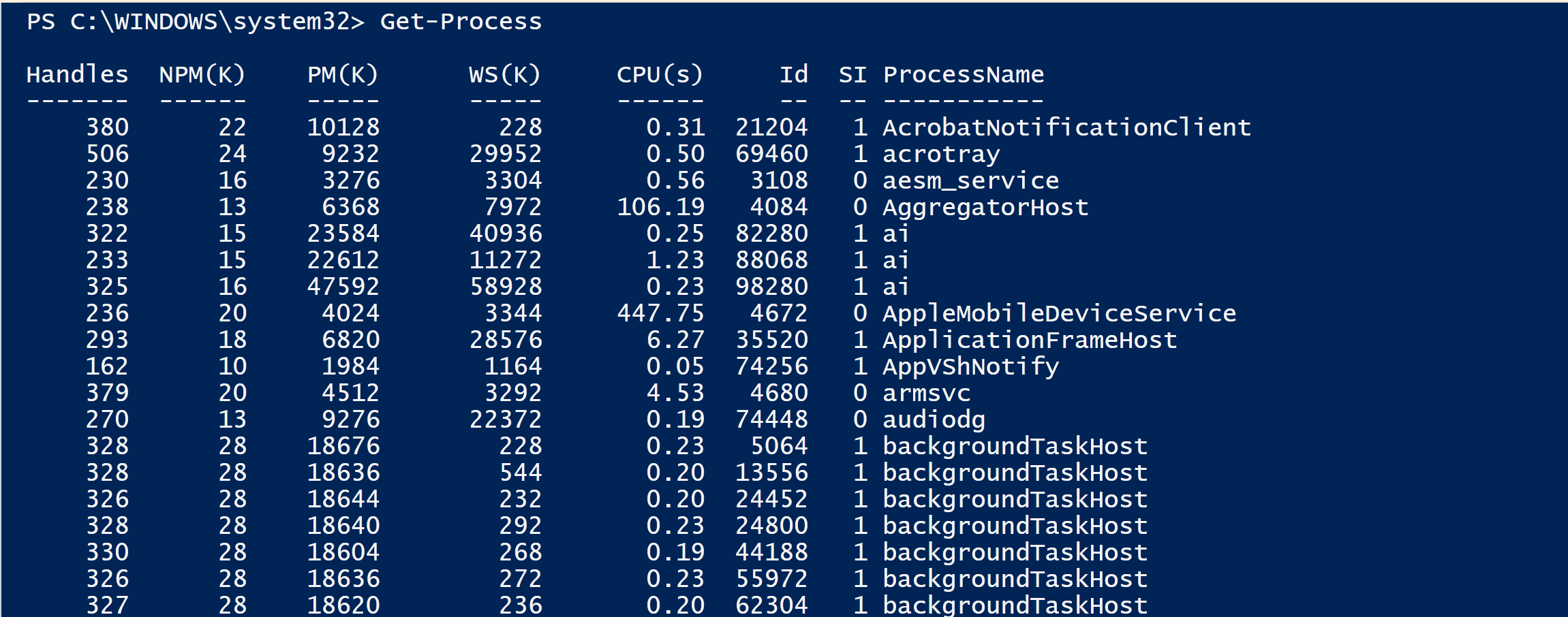
Find processes by name. This command allows you to name a specific process to investigate, note that the process does not need the file extension.
Get-Process -Name nordvpn-service
Check process details (including command line arguments). This command is useful for checking where specific processes are being run from. You can use it to investigate unusual process hierarchy etc.
Get-WmiObject Win32_Process | Select-Object ProcessId, Name, CommandLine
Find processes with established connections. You could use this command whilst hunting for unauthroised external connection or data exfiltration.
Get-NetTCPConnection | Where-Object { $_.State -eq 'Established' }
Check which processes are listening on network ports. From a system hardening perspective you could use this to reduce unused open ports, or identify rogue services or identify malware binding to ports.
Get-NetTCPConnection | Where-Object { $_.State -eq 'Listen' }
Network and Firewall Analysis
List all firewall rules. The Get-NetFirewallRule command has a huge output, even for a local host, to make it more manageable select the more important columns. The below screenshot is the part of the unfiltered commandlet.
Get-NetFirewallRule | Select-Object DisplayName, Direction, Action, Enabled
Check active network connections. This command shows all TCP connection irrespective of their state. They could be Bound, Listening, Established, CloseWait or TimeWait.
Get-NetTCPConnection
Get details of a specific firewall rule. This command can be used to get all details of a specific firewall rule.
Get-NetFirewallRule -DisplayName "Remote Service Management (RPC)" | Format-List
Enable or disable a firewall rule. This command is specifically useful when working on Command Line windows servers. Be sure to re-enable any rules if you run this command.
Set-NetFirewallRule -DisplayName "Remote Service Management (RPC)" -Enabled False
User and Permission Management
List all local users. From a blue team perspective you could use this commandlet to identify attackers who have created hidden or unauthorised user accounts to maintain access.
Get-LocalUser
List all local groups. This is important because attackers sometimes create custom groups for privilege escalation or to hide malicious activity.
Get-LocalGroup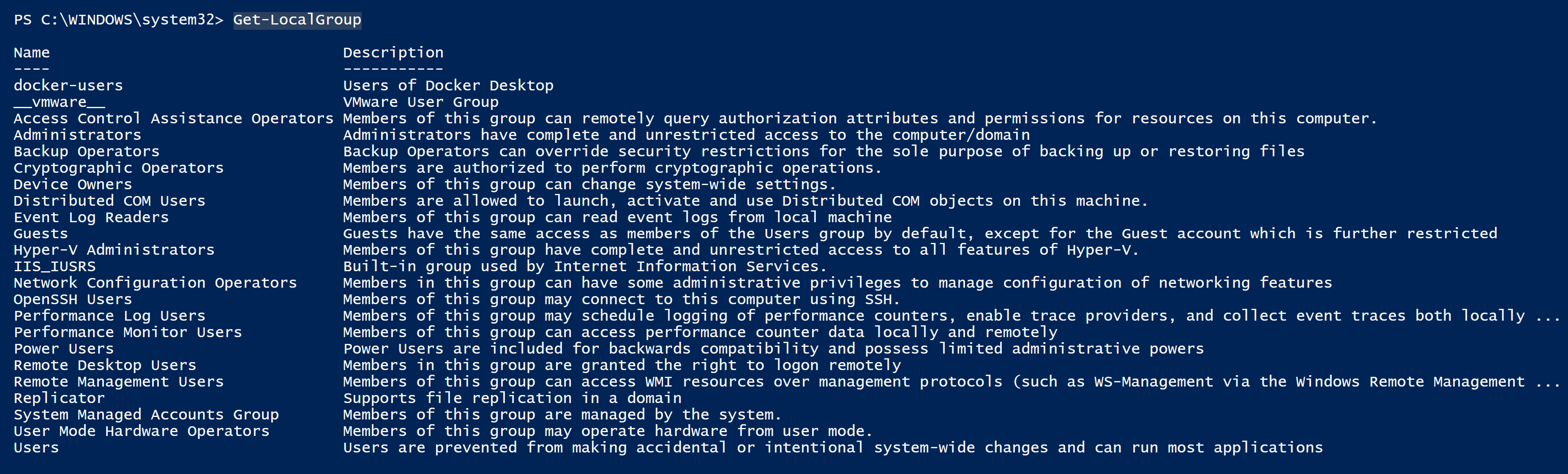
Check group memberships for a user. This command can be useful to ensure proper access control or look for users with unauthroised escalated privileges.
Get-LocalGroupMember -Group "docker-users"
Find users with administrative privileges. In order to prevent unauthorised access to sensitive resources you can use the below command to see which users are added to privileged AD groups.
Get-LocalGroupMember -Group "Administrators"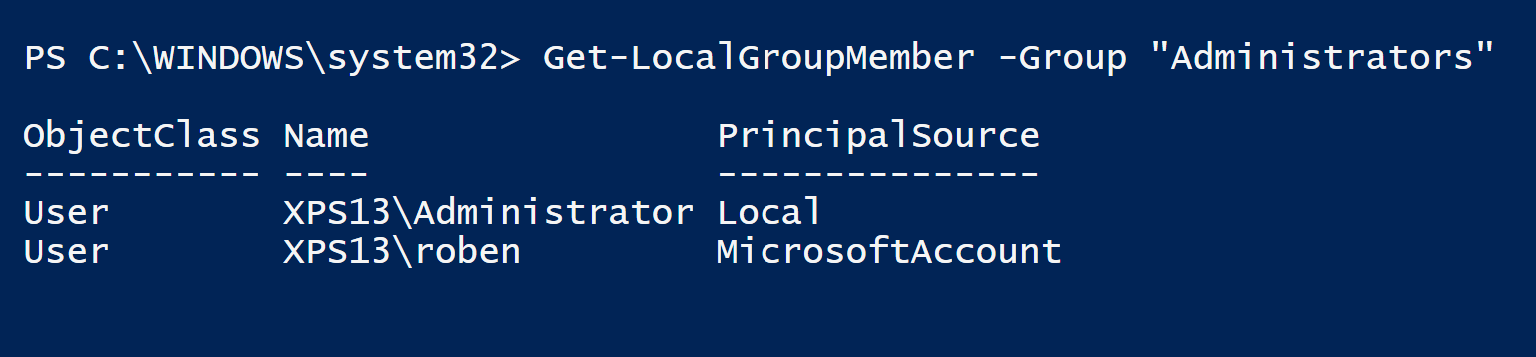
This blog introduced some useful powershell commands looking at AD groups, users, TCP connections and firewall rules. In the following blog we will look at Audit and Log Analysis, Malware and Threat Hunting and System Hardening.