

This is the 2nd of two blog posts looking at useful PowerShell commands for security engineers or system administrators. This time we are concentrating on Audit and Log Analysis, Malware and Threat Hunting, and System Hardening.
Audit and Log Analysis
Check failed logins from the event log. Monitoring failed logins in the Windows Event Log is a crucial security practice because it helps detect brute force attacks, unauthorised access attempts, insider threats, and system misconfigurations.
Get-WinEvent -FilterHashtable @{LogName='Security'; ID='4625'} | Format-Table -AutoSize
Search for security-related events. This commandlet allows you to search Windows Event Logs and aggregate them by the LogName of ‘Security’ and limits the result to 20 items.
Get-WinEvent -LogName Security -MaxEvents 20
Check login events (successful logins – Event ID 4624). This command allows you to monitor successful logons by specifying the EventID 4624.
Get-WinEvent -FilterHashtable @{LogName='Security'; ID='4624'} | Format-Table -AutoSize
Check password changes (Event ID 4724). Tracking password changes helps ensure that credentials are being updated securely and not being manipulated by attackers or compromised users.
Get-WinEvent -FilterHashtable @{LogName='Security'; ID='4724'} | Format-Table -AutoSize
Malware and Threat Hunting
Find recently modified files (potential malware). Attackers and malware often modify or create new files to establish persistence, execute payloads, or exfiltrate data, so this commanlet is useful for tracking these changes. The output can be very large, so you might want to modify the time window.
Get-ChildItem -Path C:\ -Recurse -ErrorAction SilentlyContinue | Where-Object { $_.LastWriteTime -gt (Get-Date).AddDays(-1) }
Check scheduled tasks for suspicious entries. Attackers and malware often use Scheduled Tasks to achieve persistence, execute malicious scripts, and maintain unauthorised access. This command can be used to monitor scheduled tasks to help detect and prevent security threats before they escalate.
Get-ScheduledTask | Where-Object {$_.State -eq 'Running'} | Format-Table -AutoSize
Check autostart registry keys for persistence. Attackers or malware can modify Windows registry keys to ensure that malicious code runs every time a user logs in or the system starts. This command will show which keys are set to run on device start up.
Get-ItemProperty -Path 'HKLM:\Software\Microsoft\Windows\CurrentVersion\Run'
Scan system for suspicious executables. Malicious actors may replace system files with altered versions. This command exports a list of executables and their hashes so that they can be compared against a trusted database (e.g., VirusTotal, Microsoft).
Get-ChildItem -Path C:\Windows\System32 -Filter *.exe -Recurse | Get-FileHash
System Hardening
Check Windows Defender status. Attackers and malware often disable or tamper with Windows Defender to avoid detection, ensuring it’s enabled and functioning properly is crucial for system security. This command outputs a snapshot of the current Windows Defender status.
Get-MpComputerStatus
Run a Windows Defender scan. This command is particularly useful for running an adhoc scan task on a commandline Windows server. If you are running this to test the command be aware that it uses significant system resources, and can take a long time to run.
Start-MpScan -ScanType FullScan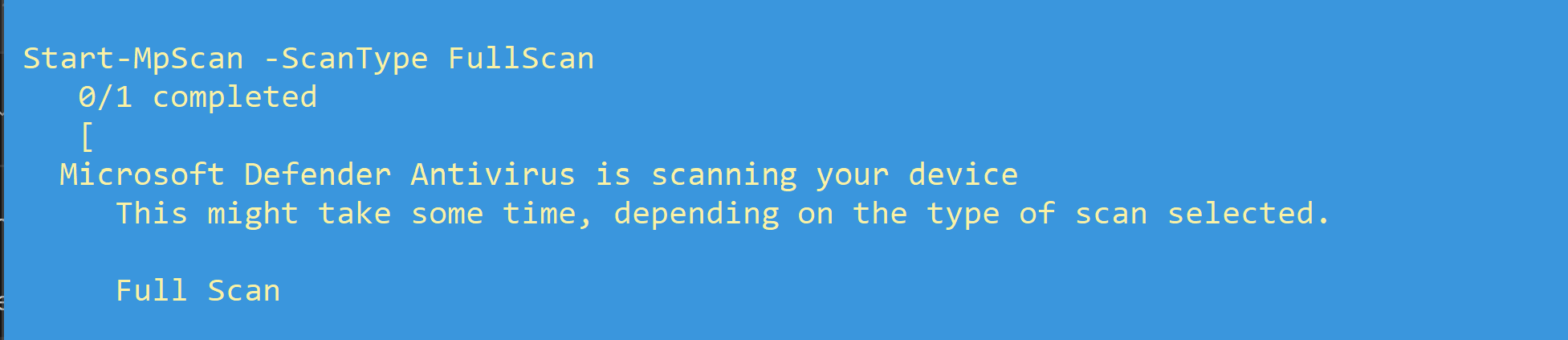
List installed security updates. The Get-HotFix command will show all installed updates but it is extremely slow. The second command queries the registry and is much faster.
Get-HotFix | Where-Object {$_.Description -match "Security"}Get-ItemProperty -Path "HKLM:\SOFTWARE\Microsoft\Windows\CurrentVersion\Uninstall\*" |
Where-Object { $_.DisplayName -like "*Update*" } |
Select-Object DisplayName, InstallDate

Disable SMBv1 (to prevent ransomware attacks). SMBv1 (Server Message Block version 1) is an old, vulnerable protocol used for file sharing between Windows machines. Disabling SMBv1 is crucial because it is a major security risk, often exploited by ransomware and other malware.
Set-SmbServerConfiguration -EnableSMB1Protocol $false -Force
In the previous two blog we have investigated using Powershell for SysAdmin and security tasks but we have barely scratched the surface and powershell is a entire discipline in itself. All the information you could need can be found in the Microsoft Powershell docs area HERE.